
App support

Hybrid Traveller Connect: getting started with the app

Hybrid Traveller Connect puts your Hybrid Traveller in your pocket. You can see the battery, whether the router is on 4G or 5G and which network it is using. You can add an eSIM, choose a network when you roam and change the Wi-Fi name and password. Here is everything you need to get going, and what to do when something does not work.


Download Hybrid Traveller Connect on the App StoreGet Hybrid Traveller Connect on Google Play

Free for iPhone (iOS 15.6 or later) and Android. The app is developed by Wifi.se for Hybrid Traveller.
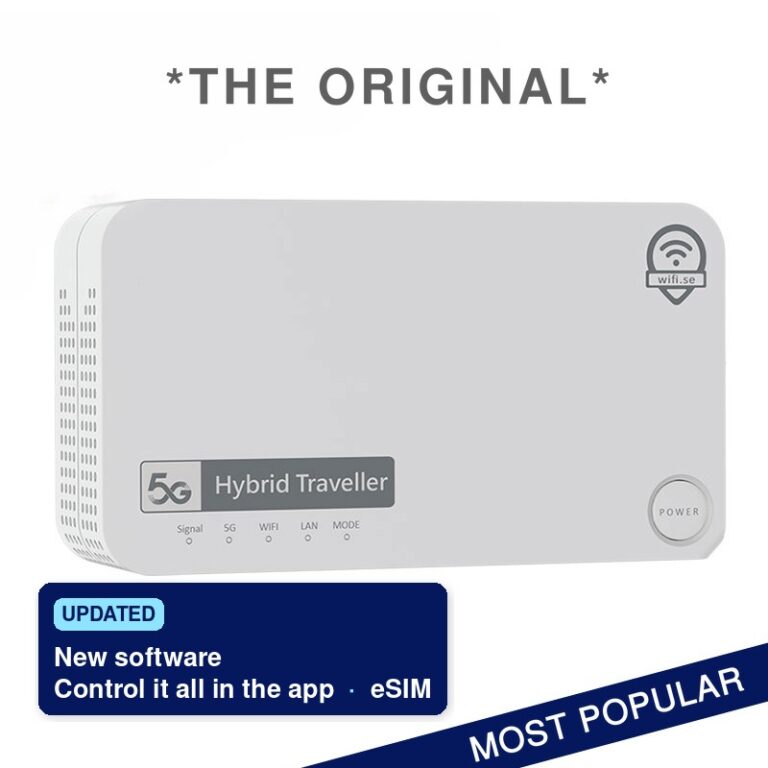
Hybrid Traveller 5G router with eSIM, up to 8 hours of battery and its own app, Hybrid Traveller Connect

What do you need help with?

Step by step

Getting started with the app

The app talks to the router over Wi-Fi. Your phone therefore needs to be connected to your Hybrid Traveller while you use it, just as when you connect to the router to browse.

It takes a couple of minutes from download until you see battery and network in the app.

1

Download the app

Search for Hybrid Traveller Connect on the App Store or Google Play. The app is free.

2

Start the router

Insert the SIM card if you use a physical one and press the power button. The router finds the mobile network on its own and starts its Wi-Fi.

3

Connect your phone to the router’s Wi-Fi

Open the Wi-Fi settings on your phone and choose the router’s network. The network name and password are on the label on the router and in the information that came with it.

4

Open the app

Allow the permissions the app asks for. The camera is only needed when you scan an eSIM QR code. Your router then appears with battery, network and Wi-Fi.

Good to know: the router updates its software automatically when it starts. An update can take up to ten minutes and the router may restart during it. Do not switch it off while this is happening.

eSIM

Add an eSIM with a QR code

An eSIM is a digital SIM card. Instead of inserting a card, you install the plan in the router by scanning a QR code. When you buy an eSIM from us, the QR code arrives by email.

Hybrid Traveller has a built in eSIM, so you can switch between a regular SIM card and an eSIM depending on the trip.

Show the QR code on another screen. You scan with your phone’s camera, so the code cannot be displayed on the same phone at the same time. Open the email on a computer or tablet, or print the code.
1

Connect to the router

Your phone must stay connected to the Hybrid Traveller Wi-Fi throughout the installation.

2

Choose eSIM in the app

Open Hybrid Traveller Connect and choose to add an eSIM. Allow camera access when asked.

3

Scan the QR code

Hold the phone steady in front of the code until it is read.

4

Wait until it is done

Installation usually takes five to ten minutes. Sometimes it looks as if nothing is happening. That is normal, so do not cancel.

A QR code can only be used once, so do not delete the eSIM profile once it is installed. Read more in our eSIM questions and answers.

Overview

Battery, 4G and 5G: what the app shows

The home screen is built so you can see at a glance that everything is working. It is the same information that used to require logging in to the router’s web interface, now gathered on your phone.

Battery

The battery lasts up to 8 hours, depending on coverage, how many devices are connected and what they are doing. The app shows how much is left. The router also runs on 12 volts and 230 volts and can be used while it charges.

4G or 5G

The router picks the network that works best where you are. If 5G is weak or missing it moves to 4G, and the app shows which one is in use right now. It is normal for this to change during a trip.

Network and Wi-Fi

You can see which mobile network the router is connected to and which Wi-Fi it is broadcasting. Hybrid Traveller also has a LAN port if you would rather connect a computer or TV by cable.

Roaming

Switch network when you are abroad

Abroad, the router can often choose between several local networks. Most of the time it picks the right one by itself, and automatic selection is what we recommend. But networks perform differently from place to place. On a campsite where one network is overloaded, another may work far better.

Roaming is already switched on in Hybrid Traveller, so you do not need to change anything for the router to work with a roaming SIM or eSIM.

How to choose a network in the app

1

Open the network settings

Go to the mobile network option in Hybrid Traveller Connect.

2

Choose from the available networks

The app lists the networks the router can find where you are. Pick the one you want to try.

3

Go back to automatic

When you leave the area or cross a border, choose automatic again and the router will find the best network itself.

Wi-Fi

Change the Wi-Fi name and password

A network name of your own makes it easier to find the right Wi-Fi on a busy campsite or in a marina. A password of your own means only the people you choose get in. It is all done in the app, without opening the router’s web interface.

Hybrid Traveller broadcasts on both 2.4 GHz and 5 GHz. 2.4 GHz reaches further and often suits TVs, heat pumps and older devices. 5 GHz gives higher speed over shorter distances.

1

Open the Wi-Fi settings

Choose Wi-Fi in the app and enter a new name, a new password or both.

2

Save

The router restarts its Wi-Fi with the new details.

3

Connect again

Your phone drops the connection when the name or password changes. Choose the new network and enter the new password on your phone and your other devices.

Forgotten the password? See troubleshooting below.

Troubleshooting

When something is not working

Most problems are solved with a few simple checks. Start here before you get in touch, and it will be quicker for us to help if you still need us.

The app cannot find the router

Check that your phone is connected to the router’s Wi-Fi and not to another network, and that mobile data is not taking over. Close the app completely and open it again. If that does not help, restart the router.

Wi-Fi works but no internet

Then the Wi-Fi is fine but the router has no mobile data. Check that the SIM card or eSIM is active and that the data plan has not run out. Test a physical SIM card in a phone with Wi-Fi switched off to see whether the card gives internet.

The eSIM will not install

Show the QR code on another screen, keep your phone on the router’s Wi-Fi and give the installation time. No eSIM after your purchase? We activate eSIMs manually on weekdays between 11.00 and 17.00 Swedish time.

Slow speed or only 4G

Place the router high up and near a window, not in a cupboard or behind metal. Try another network in the app if you are abroad, and switch off any VPN for a moment to see whether that is what slows you down.

Forgotten the Wi-Fi password

The original password is on the router’s label. If you have changed it and can no longer get in, reset the router. The details on the label then apply again.

Reset the router

Hold the RESET button for about 30 seconds with a thin SIM pin. The hole is next to the SIM slot. Never use anything large or sharp. The router restarts with its default settings.

Frequently asked questions

Questions and answers about Hybrid Traveller Connect

Hybrid Traveller Connect is the Wifi.se app for the Hybrid Traveller router. The app shows the battery, whether the router is connected to 4G or 5G and which network it uses. You can add an eSIM with a QR code, choose a mobile network when roaming and change the Wi-Fi name and password.

No. Hybrid Traveller Connect is free to download on the App Store and Google Play.

The app is available for iPhone with iOS 15.6 or later and for Android phones through Google Play.

No. The app is developed for Hybrid Traveller and works together with the router’s own software.

Yes. The app communicates with the router over its Wi-Fi, so your phone should be connected to Hybrid Traveller while you use the app.

Yes. You scan the QR code for your eSIM with the phone camera in the app and install the profile in the router. Show the QR code on another screen or print it, and do not cancel the installation, which usually takes five to ten minutes.

No. An eSIM QR code can only be used once. Do not delete the eSIM profile after it has been installed.

Open the mobile network option in the app and choose from the networks the router finds where you are. Choose automatic again when you move on, and the router will find the best network itself. Roaming is already switched on in Hybrid Traveller.

The router automatically chooses the network that works best. If 5G is weak or not available where you are, it connects to 4G. This is normal and often changes during a trip.

The Hybrid Traveller battery lasts up to 8 hours, depending on coverage, the number of connected devices and use. The router can also run on 12 volts and 230 volts and be used while it charges.

Choose Wi-Fi in the app, enter a new name or password and save. Then connect your phone and other devices to the network with the new details.

The original password is on the router’s label. If you have changed it and cannot get in, hold the RESET button for about 30 seconds with a thin SIM pin. The router returns to its default settings.

Our customer service is on +46 8 20 21 05 and info@wifi.se. Please tell us which phone you have, whether you use a SIM card or an eSIM and which country you are in.

Contact

Still stuck? We are here to help.

Our customer service knows Hybrid Traveller and the app inside out. Tell us which phone you use, whether you have a SIM card or an eSIM, which country you are in and what happens, and we will get to a solution faster.

Call our customer service

+46 8 20 21 05

Email us

info@wifi.se

Contact us