
 Customer support
eSIM
With eSIM Europe you get quick and easy access to mobile data when you travel in Europe – without having to wait for a physical SIM card.
The eSIM is sent digitally and is easily installed in a compatible mobile phone, tablet or router. Perfect for holiday, motorhome, caravan, boat or work on the go.
Choose the data package that suits your trip and surf in several European countries with the same eSIM.
What is eSIM?
An eSIM is a digital SIM card that is installed directly in a compatible mobile phone, tablet or other device.
So you don’t need a physical SIM card. Instead, you normally receive a QR code that you scan in the device to install your eSIM.
It’s convenient when you want to get started quickly or avoid changing a physical SIM card.
How does eSIM work?
When you order an eSIM, you will receive a QR code by e-mail.
You scan the QR code in a compatible device and install the eSIM profile. When the eSIM is activated, you can use mobile data according to the terms of the data package.
Which devices work with eSIM?
eSIM only works in devices that support eSIM.
Many modern mobile phones, tablets and routers have eSIM support. Our Hybrid Traveller 5G supports eSIM and can be used with our eSIM data packages.
Always check that your device is eSIM compatible before ordering.
Can I use eSIM in a router?
Yes. Routers with eSIM support can use the eSIM directly in the router.
Our Hybrid Traveller 5G supports eSIM and can therefore be used with our eSIM data packages.
When will my eSIM be activated?
Activation takes place manually on weekdays between 11 a.m. and 5 p.m.
eSIM is not activated during evenings or weekends.
Orders received after 16.00 is normally activated the following weekday.
Can I choose a future activation date?
No, it is not possible to select a future activation date.
The eSIM is activated in connection with the order and payment, and the validity period then starts counting from the activation date.
What happens if I order the eSIM on the weekend?
If you don’t see yours eSIM on My Pages after ordering, send us an email and we will help you and send your eSIM.
How do I install my eSIM?
You get one QR code via email.
Open your device’s mobile data settings and choose to add one eSIM or mobile subscription. Then scan the QR code and follow the instructions on the screen.
Should you use eSIM in your Hybrid Travellerrouter? Read the instructions below below eSIM for Hybrid Traveller.
Can I scan the QR code multiple times?
The eSIM QR code can only be used once and must be scanned on the device where the eSIM card is to be used.
Therefore, do not delete the eSIM profile after installation. If the profile is deleted, the same QR code cannot be used again.
Can I move my eSIM to another phone or device?
No. The eSIM QR code can only be scanned and activated once.
Therefore, do not remove the eSIM profile from the device after installation, as the same QR code cannot be used again on another device.
Does data roaming have to be activated?
Yes, if the eSIM is used as a roaming SIM in Europe must data roaming be activated in the device.
Without data roaming, you may not have an internet connection abroad.
Does the eSIM have a PIN code?
Some of ours eSIM have a PIN while others do not require a PIN.
If your eSIM has a PIN code, it appears in the information you receive in connection with the delivery.
How long is the data package valid for?
Ours Europe eSIM applies in 30 days from the activation date.
The validity period starts counting from the day the eSIM card is activated.
In which countries does eSIM work?
Which countries are included depends on which eSIM package you have chosen.
Always check the country list for the current data package before travelling.
Can I use the eSIM in several countries during the same trip?
Yes. If the countries are included in your data package, the same eSIM can be used when travelling between them.
The device normally automatically connects to an available local mobile network.
Do I need to change the eSIM when I cross a country border?
No. If the country is included in your data package, you will continue to use the same eSIM.
Check that data roaming is enabled.
Can I use the eSIM at the same time as my normal SIM card?
Yes, many modern phones support Dual SIM and can use a physical SIM and an eSIM at the same time.
For example, you can keep your regular SIM for calls and SMS and use the Wifi.se eSIM for mobile data.
Exactly how this works depends on your phone model.
How do I choose an eSIM for mobile data?
In the phone’s settings, you can normally choose which SIM or eSIM to use for mobile data.
Select Wifi.se eSIM as the data source and check that data roaming is activated if you are abroad.
Can I make calls and send SMS with eSIM?
Our eSIMs are primarily intended for mobile data.
If you need regular phone calls and SMS, you can keep your regular SIM card in the mobile and use the eSIM for the internet.
Can I use hotspot with eSIM?
Yes, if your device supports internet sharing, you can normally share the eSIM connection via hotspot to other devices.
Keep in mind that multiple connected devices can add up to data usage quickly.
Can I stream TV with eSIM?
Yes. You can use the eSIM for streaming, surfing, work and other common internet services.
As a benchmark, streaming can use approx 1-3GB per hour depending on image quality and resolution.
How much data do I need?
How much data you need depends on how you use the internet.
• Normal browsing, e-mail and messaging use relatively little data.
• Streaming and video meetings use significantly more data.
• Several connected devices cause data consumption to increase faster.
If you stream a lot, we recommend a larger data package.
Is there a daily data limit?
You use data from the total amount of data included in your data package.
How quickly the data is consumed depends on how you use the internet. Streaming, large downloads and video meetings can use a lot of data in a short time.
Can I use all the data in one day?
There is normally no fixed daily amount of data. If you use a lot of data, a large part or all of the data package can therefore be used up in a short time.
How do I see how much data I’ve used?
You can track your eSIM and data package via My Pages.
Data consumption is not always displayed in real time. The information is normally updated on weekdays and the weekend’s consumption can therefore only be shown on Monday.
Can I top up more data on an active eSIM?
It depends on the current eSIM package.
If the data runs out or the period expires, a new data package or a new eSIM may need to be activated. Contact us if you are unsure which option applies to your eSIM.
Do I get a Swedish IP address with eSIM?
No, you normally do not get a Swedish IP address when the eSIM is used for roaming in Europe.
The IP address is controlled by the mobile network and the roaming solution used and can therefore appear as, for example, Belgian, Spanish or from another European country.
Can I watch Swedish TV with eSIM when I’m in Europe?
Yes, many streaming services work even when you are in Europe.
Some Swedish services and certain content may require a Swedish IP address. Then you may need to use a VPN service with a Swedish server.
What is VPN?
A VPN service allows you to connect to the internet through a server in another country.
For example, if you connect to a Swedish VPN server, you normally get a Swedish IP address, which may be needed for some Swedish streaming services.
Do I need VPN to use eSIM?
No. eSIM works without VPN.
VPN is only needed if, for example, you want a Swedish IP address or use a service that requires your internet connection to come from Sweden.
Can I use VPN with eSIM?
Yes. We normally recommend using the VPN directly on the mobile, computer, tablet or streaming device.
VPN can affect speed depending on the service and server you use.
Why can the speed vary?
The speed is affected by, among other things, the local operator, coverage, load in the mobile network, which network technology is available at the location and which device you are using.
Therefore, the speed may vary between different countries, places and times of the day.
What do I do if the eSIM doesn’t work?
First check the following:
• That the eSIM profile is installed and activated.
• That mobile data is activated.
• That Wifi.se eSIM is selected for mobile data.
• That data roaming is activated if you are abroad.
• That WiFi is turned off when you test the connection.
After that, restart your phone or device.
If it still doesn’t work, you can contact us for help.
eSIM for Hybrid Traveller
With eSIM in Hybrid Traveller you can use mobile data directly in the router without a physical SIM card.
The installation is done easily via the router, and when the eSIM profile is activated, you can use your Hybrid Traveller as usual for internet in Sweden and Europe.
Install eSIM in Hybrid Traveller
Follow the steps below to install and activate an eSIM in your Hybrid Traveller. Have the QR code for your eSIM available before you start.
If you use the WeSim app on your mobile phone, you cannot simultaneously scan a QR code displayed on the same mobile phone.
Therefore, open the QR code on one other device, such as a computer or tablet, or print the QR code before starting the installation.
During some parts of the process, it may look like nothing is happening. It is normal. Do not interrupt the installation until it is completely finished.
Download the apps
Download the apps WeSim and WeSIM Plus to your mobile phone.
- iPhone: search for the apps in the App Store.
- Android: search for the apps in Google Play.
Connect the mobile phone to the router
Connect the mobile phone to your Hybrid Traveller’s WiFi. The mobile needs to be connected to the router during the installation.
Open WeSim
Launch the app WeSim or WeSim Plus.
The first time the app is opened, it will ask for certain permissions, including access to the camera. Follow the on-screen instructions and check
that the requested settings are activated.
Swipe on through the introductory pages. When you get to the last page, tap Get started.
The app then checks that the mobile is connected to the router.
Enable eSIM mode
When the app asks if you want to plug in the router eSIM mode, select Yes.
Wait while the router reboots
The router will now restart automatically. It normally takes approx 2 minutes. Wait until the router has finished booting before continuing.
Connect to the router again
After the router has restarted, check that the mobile is connected again Hybrid Traveller’s WiFi.
Activate eSIM
Open the app again and tap Activate eSIM.
Add a new eSIM
Select the option to add one new eSIM.
Scan the QR code
Choose QR Code. The mobile’s camera opens automatically.
Point the camera at the QR code for your eSIM. The QR code therefore needs to be displayed on another device or printed.
Therefore, check that you install the eSIM card in the correct router.
Wait for the installation
After scanning the QR code, it may look like nothing is happening. It is normal. The eSIM profile is installed in the background and the process may take a few minutes. Do not interrupt the installation.
Check that the eSIM is installed
When the app shows eSIM installed successfully, go to Manage eSIM.
There you should be able to see, among other things:
- the mobile operator
- SIM card number
The buttons are shown at the bottom Delete and Enable or Disable.
If the button shows Enable, tap it.
If the button shows Disable the eSIM card is already activated. Then do nothing and go back to the main menu.
Wait for the connection
About the eSIM card do not have a PIN code normally connects the router to the mobile network within a couple of minutes.
If your eSIM has a PIN code
Some eSIM cards, for example some Vodafone-profiles, have a PIN code. Then the PIN code needs to be verified before the router can connect to the mobile network.
We recommend that the PIN code is then switched off so that it does not have to be entered every time the router is restarted.
1. Log in to the router
Check that the mobile phone or computer is connected to the router’s WiFi and open:
http://192.168.8.1/
Password: admin
Everything is written in small letters.
2. Verify the PIN code
Go to PIN Settings, enter the PIN code and press Verify PIN Code.
3. Turn off the PIN code
Once the PIN code has been verified, we recommend that you enter the PIN code one more time and then press Disable PIN Code.
Then the PIN code does not need to be entered again when the router has been switched off or restarted.
4. Done
The router should now connect to the mobile network within a few minutes. When the signal indicator lights up green, the installation is complete.
If the installation does not go through, first check that the mobile phone is connected to Hybrid Traveller’s WiFi. Then contact Wifi.se support if you need further help.
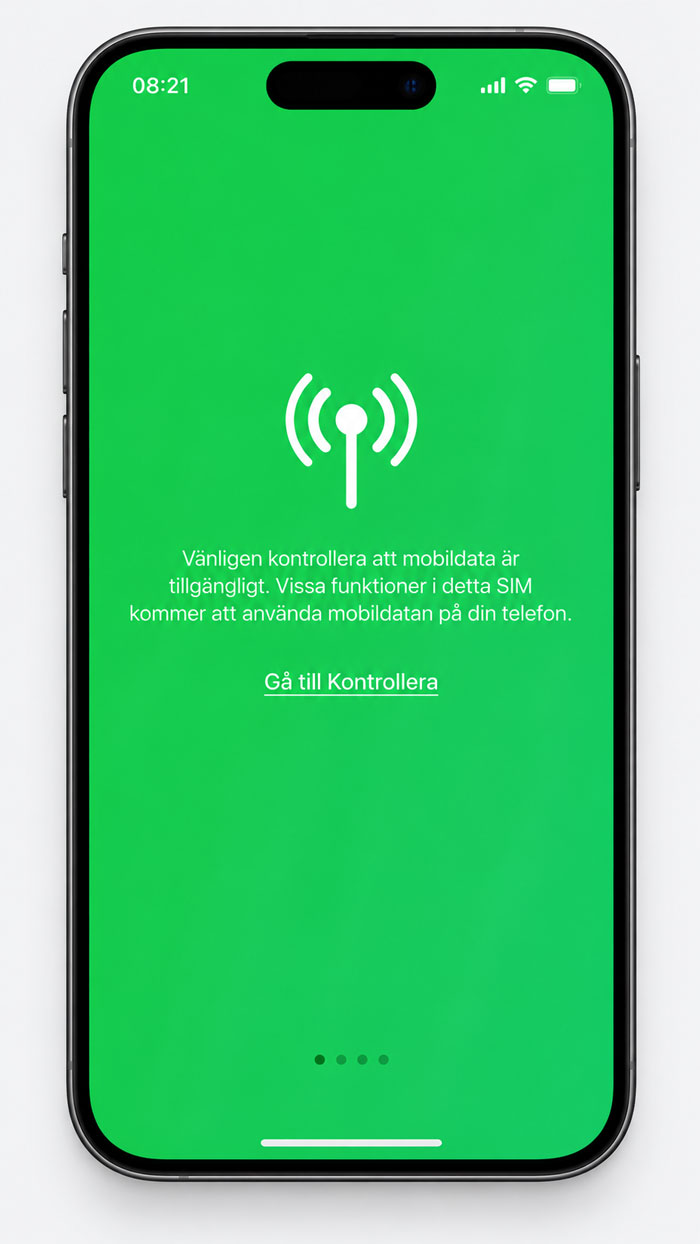
If this screen appears the first time you open WeSim
The first time you open the app, the screen in the image may appear.
You do not need to do anything on this page.
Just swipe on.
Swipe or scroll to the right several times until you have passed the introductory screens and this page disappears. Then continue until you get into the app itself.